Mini Portable Projector Buying Guide: ANSI Lumens, Throw Ratio, and Keystone Correction
Compare standardized projector brightness, calculate throw distance from image width, and plan placement, keystone, power and streaming before buying.
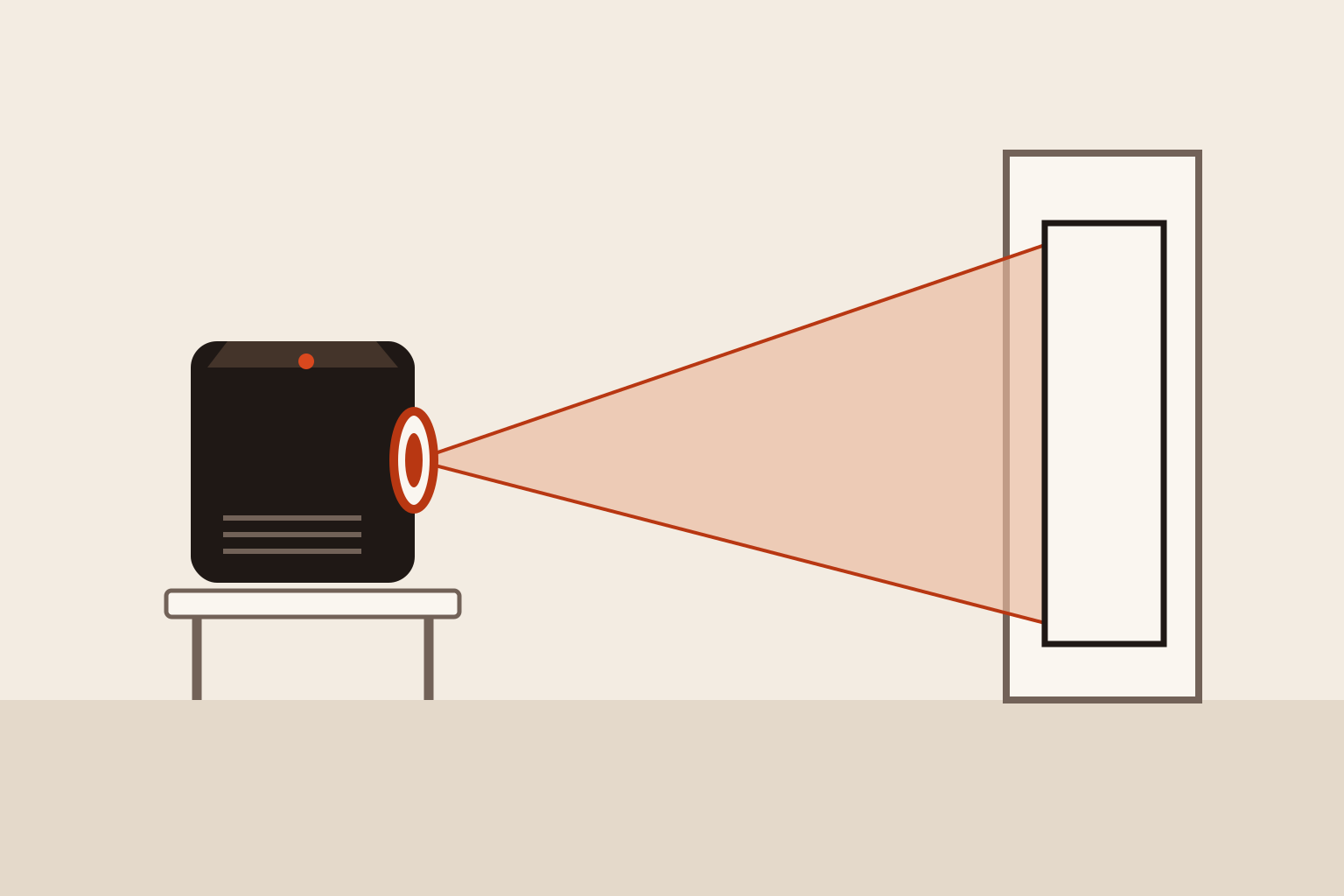
A mini projector works best as a gift when the room, screen position and viewing routine are already known. Start by measuring where the image can go and where the projector can sit. Then compare a clearly stated brightness standard, native resolution, throw ratio and the inputs needed for the intended films or presentations.
Portable size makes a projector easy to move, but it does not remove those setup requirements. A person who can darken a room and leave a clear path to a wall has a different brief from someone wanting daytime television in a bright kitchen. For the latter, compare a conventional display before committing to projection.
Compare the brightness measurement first
ANSI lumens describe projector light output using screen illuminance measurements and image area. A lux reading describes illuminance at a surface. It needs area and a measurement method before it can describe total projected output. A large lux number by itself is therefore an incomplete comparison with a lumen figure.
BenQ’s explanation of projector brightness measures separates ANSI lumens, LED brightness claims and light-source output. Light measured at the source precedes losses through the projection system. Ask for a standardized output figure rather than trying to turn a source-lumen headline into a purchase decision.
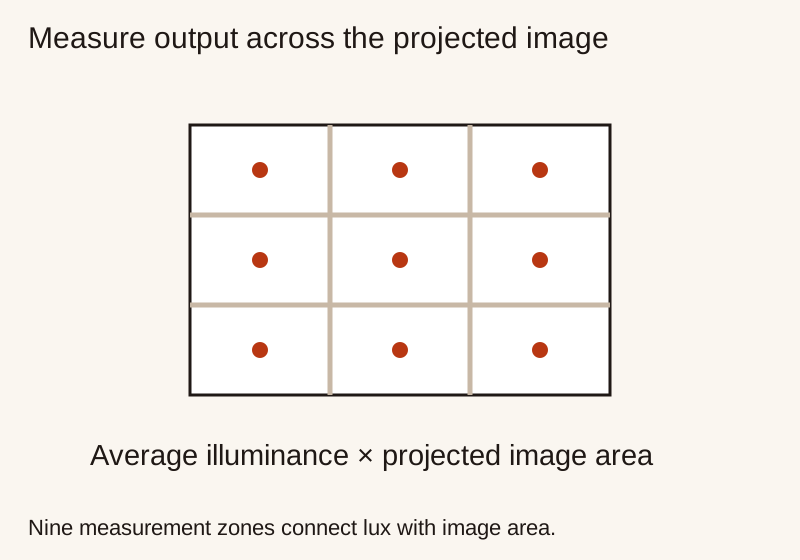
For a product listing that says ISO lumens, read which standard and operating mode it names. Epson explains its white and colour brightness specifications. Record the measurement description with the number. Avoid applying a universal conversion multiplier to LED lumens or to an unexplained marketplace brightness claim.
A second concern is the power mode. A portable projector may change output when running on its internal battery, using an economy setting or receiving limited power. Read the manual for the intended mode. The brightest advertised configuration and the longest advertised battery runtime should not be assumed to occur together.
Use a real specification set to plan the room
Anker’s Nebula Capsule 3 Laser product page provides a compact reference for the calculations below. Its published figures include 300 ANSI lumens, 1920 × 1080 standard resolution, a 1.2:1 throw ratio and a 16:9 aspect ratio. The page lists image sizes from 40 to 120 inches and up to 2.5 hours in Eco mode.
| Capsule 3 Laser published feature | Value | What to check at home |
|---|---|---|
| Brightness | 300 ANSI lumens | Darken the intended viewing space; check the chosen power mode |
| Standard resolution | 1920 × 1080 | Distinguish native image resolution from accepted input formats |
| Throw ratio | 1.2:1 | Measure lens-to-image distance against image width |
| Aspect ratio | 16:9 | Allow the full image rectangle on the wall or screen |
| Listed image size | 40–120 inches | Check whether the desired size fits the room and looks bright enough |
| Battery life | Up to 2.5 hours in Eco mode | Allow for the actual programme length and a compatible power supply |
This example demonstrates how the specifications work together. Check the exact regional model, software and package contents before buying; product families can contain similar names with different light sources or streaming arrangements.
Calculate throw distance from width
Throw ratio is lens-to-image distance divided by projected image width. For the Capsule 3 Laser’s listed 1.2:1 ratio, the required distance is 1.2 × image width. Measure from the lens position, then separately allow room for the body, cable bend and ventilation.
For a 16:9 image, width equals diagonal × 16 / √337. Convert inches to metres with 0.0254 metres per inch. Combining those relationships with the documented throw ratio gives the planning dimensions below, rounded to two decimal places.
| 16:9 diagonal | Image width | Lens-to-image distance at 1.2:1 |
|---|---|---|
| 60 inches | 1.33 m | 1.59 m |
| 80 inches | 1.77 m | 2.13 m |
| 100 inches | 2.21 m | 2.66 m |
| 120 inches | 2.66 m | 3.19 m |
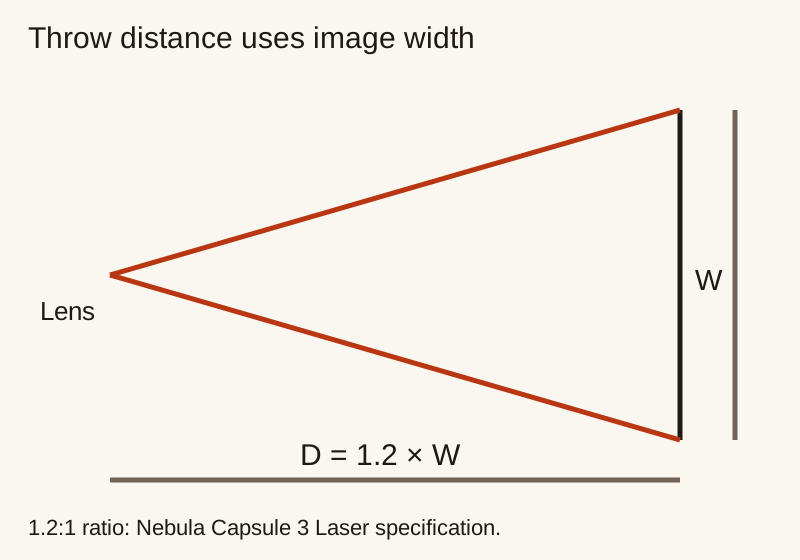
A room measurement should include furniture and walking routes. Check whether someone will pass through the light path, whether a bedside table is stable and whether the cable reaches an outlet without becoming a trip hazard. The mathematical distance is only one part of the arrangement.
If the desired screen width requires a lens position inside the sofa or outside the room, choose a smaller image or a different documented throw ratio. Digital zoom cannot create additional physical space. Read whether a projector offers optical zoom, digital scaling or a fixed lens, because those adjustments have different effects.
Make screen size work with the available light
At a fixed aspect ratio, image area increases with the square of the diagonal. Enlarging the image spreads the available light across more surface. Start smaller in the intended room and increase the image only while subtitles, faces and darker scenes remain comfortable to watch.
Control ambient light before adding accessories. Close curtains, move a lamp away from the screen and keep bright light off the projected area. A screen can improve an unsuitable wall surface, but its material and placement need to match the room and viewing positions.
Inspect the proposed wall for colour, texture and obstructions. A pale, smooth surface is easier to evaluate than a strongly coloured or textured one. Consider where the image lands relative to shelves, pictures and switches. Measure the usable rectangle rather than simply the whole wall.
For outdoor use, wait for suitably low ambient light and follow the projector’s environmental limits. A portable projector is not automatically weather resistant. Plan a dry, stable setup and protect power connections according to the equipment instructions. If safe power and placement are uncertain, keep the viewing session indoors.
Level the projector before applying keystone
Keystone correction changes the displayed image shape to compensate for angled projection. Digital correction resamples the image inside the available pixel grid. It is useful for finishing a setup, but physical alignment should come first when practical.
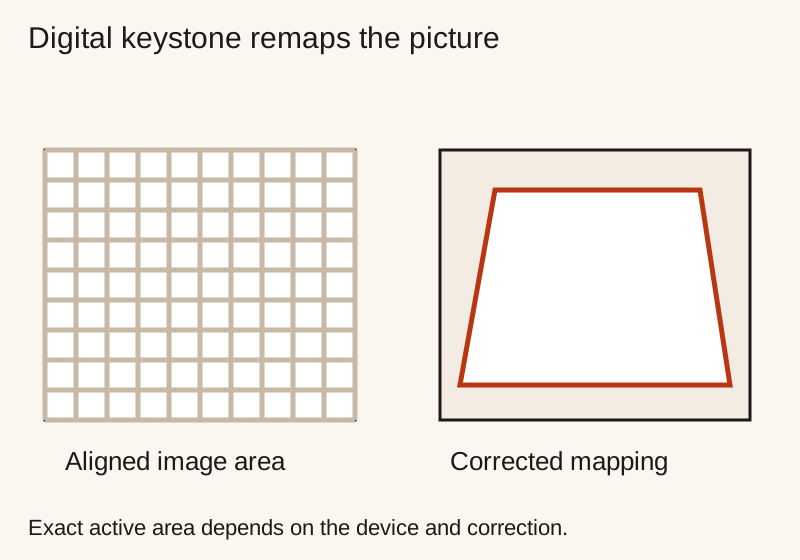
Place the projector on a stable support, aim it squarely at the image surface, and adjust height according to the manual. Then use focus and correction controls to finish the rectangle. Check text at the corners as well as the centre. Fine subtitles and presentation text make alignment problems easier to notice.
Avoid assigning a universal percentage of resolution loss to a keystone angle. The result depends on the device and correction geometry. Compare the actual image at the placement the recipient will use, especially if the gift is intended for spreadsheets, games or other detail-sensitive material.
If a tripod or stand is required, verify the mount and load compatibility. Keep the support clear of foot traffic and allow ventilation around the projector. An automatic correction feature does not make an unstable or obstructed position suitable.
Check native resolution and content access separately
Native resolution describes the image-generating system’s pixel arrangement. Accepted input resolution describes signals that can be processed. A listing that accepts 4K input can still produce a lower-resolution image; read the native or standard-resolution field before comparing products.
Next identify the actual content source: a streaming service, HDMI player, laptop, game console or local files. Check the exact projector’s supported app version, account requirements and connection. Streaming availability can change by region and software version, so confirm the intended service on the current model rather than relying on an old review.
Wireless casting also depends on the phone, app and content restrictions. If the recipient mainly wants a particular subscription service, verify the supported playback route and controls before purchase. A logo for a wireless protocol is not enough to establish that every protected video will cast.
Budget power, audio and accessories together
A battery runtime figure should be compared with the programme length and setup time. A long film may require a power connection even when the projector is marketed as portable. Check the required adapter output and whether the supplied cable reaches the intended position.
Built-in speakers simplify setup, while an external speaker adds another battery or power connection. If using Bluetooth audio, check synchronization with the actual video source. For a wired connection, confirm the available ports on both devices and include the necessary cable.
Consider fan noise from the intended seat. A compact unit on a bedside table can be close to the listener; placing it elsewhere changes both noise and throw distance. Read sound measurements with their stated conditions and use a return policy that allows a practical evaluation at home.
Questions before wrapping
Can automatic keystone replace a stand? It can correct image shape within the model’s limits, but a stable, correctly positioned support still matters for focus, airflow and safety.
Is the largest advertised image the best everyday setting? The useful size depends on ambient light, distance and content. Start with a comfortable smaller image in the actual room.
What completes the gift? Include the documented power supply, any required source cable, a compatible support if needed and a return receipt. Let the recipient sign into personal accounts themselves.
Use the portable audio and projector collection to coordinate audio, or the gadget comparison guide to compare two complete setups.
Keep the setup easy to repeat
Save the preferred image size and note the support position once the recipient finds a comfortable arrangement. Keep the remote and required cables together so the next viewing session starts with the same usable setup.
Related Gift Buying Guides
Waterproof Bluetooth Shower Speaker Guide: IPX7 vs IP67 Ratings and Bathroom Acoustics
Compare IPX7 and IP67 speakers using manufacturer water-care rules, secure mounting, speech controls and fully dry charging connections.
Read buying guide