Ergonomic Vertical Mouse Guide: Handshake Angle, Forearm Pronation, and Sizing
Choose a vertical mouse by hand size, handedness, button reach and connection needs. Understand the 57-degree shell angle, research findings and a gradual transition.
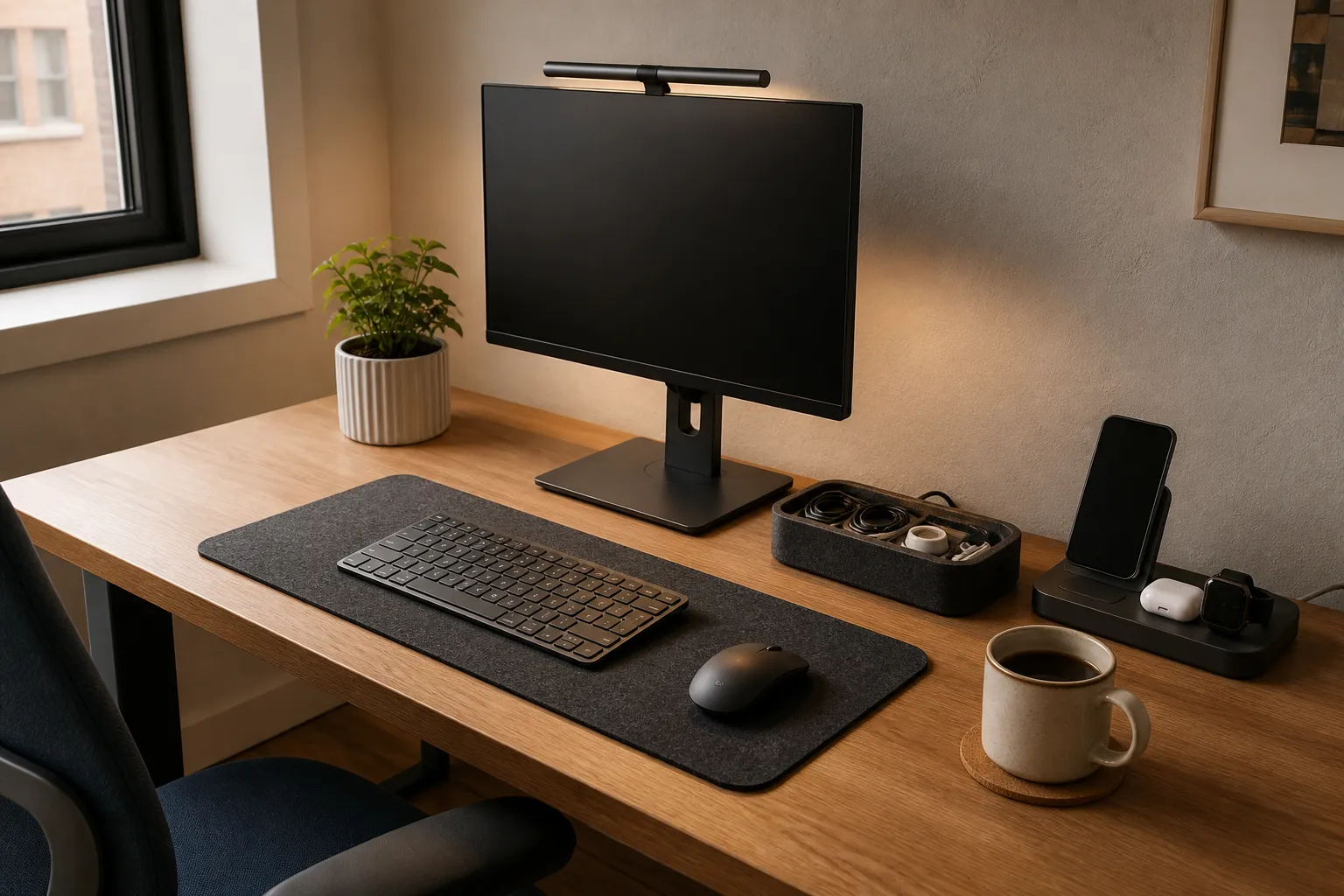
A vertical mouse changes the way the hand rests on the device. It can reduce the amount the forearm rotates toward a palm-down position, but the right purchase still depends on hand size, button reach and the desk around it. Start with the person’s current mouse: what feels awkward, which hand they use, and whether they want a different shape at all.
Logitech’s Lift and MX Vertical both use a manufacturer-described 57° angle. Lift targets small to medium hands and includes a left-handed option; MX Vertical targets medium to large hands. Those are useful starting points for a shortlist. A return window and a comfortable trial are especially valuable for an accessory that someone will hold throughout the day.
What the handshake angle changes
Pronation is rotation of the forearm toward a palm-down position. In that motion the radius rotates relative to the ulna. A raised mouse can let the hand sit closer to a handshake orientation. The shell’s advertised angle and the user’s measured forearm posture are different measurements: shoulder position, desk height and grip all affect the latter.
In Quemelo and Vieira’s 2013 study, Biomechanics and performance when using a standard and a vertical computer mouse, 16 participants used a standard and a vertical mouse. Mean pronation was 42° with the standard mouse and 28° with the vertical mouse. Extensor muscle activity was also lower with the vertical device, while time to target was longer: 4.2 seconds rather than 3.4 seconds. These are results for the devices, participants and task in that study.
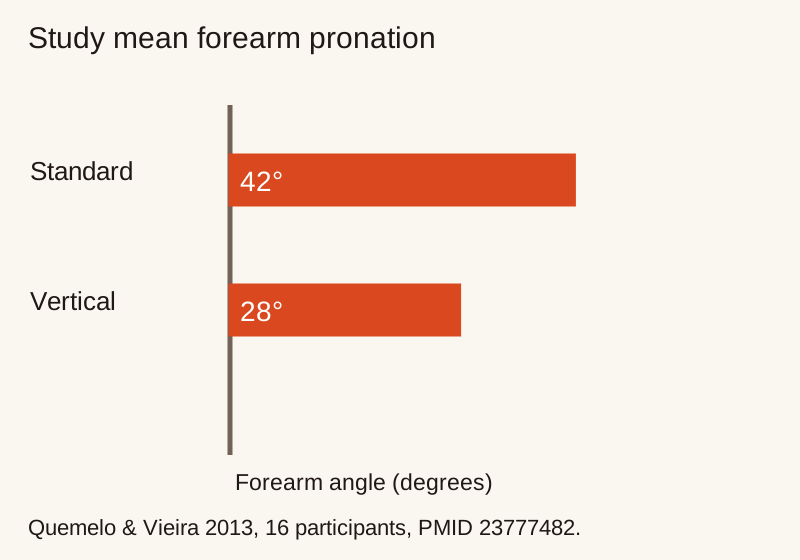
The purchasing implication is a tradeoff worth trying: a different posture can come with unfamiliar pointing movements. A smaller number on a posture measurement is not enough to choose a mouse for someone else. Comfortable reach, support, performance and personal preference all matter.
Preserve the medical boundary
Persistent wrist pain, tingling, numbness or weakness deserves advice from a qualified health professional. A mouse is an input device, and changing it should not delay assessment of symptoms.
Schmid and colleagues studied 21 patients with carpal tunnel syndrome. They compared a standard mouse, vertical mouse, gel mouse pad and gliding palm support. The vertical mouse reduced ulnar deviation, but none of those devices reduced carpal tunnel pressure. The authors left selection dependent on personal preference. This supports a practical trial of comfort and usability, with clinical care for symptoms rather than a promise of pressure relief.
Avoid presenting a vertical mouse as a corrective gift for an unsolicited medical problem. Ask whether the person wants to experiment with one. For an established treatment plan, follow the professional’s advice on equipment and work habits.
Measure the hand before comparing shells
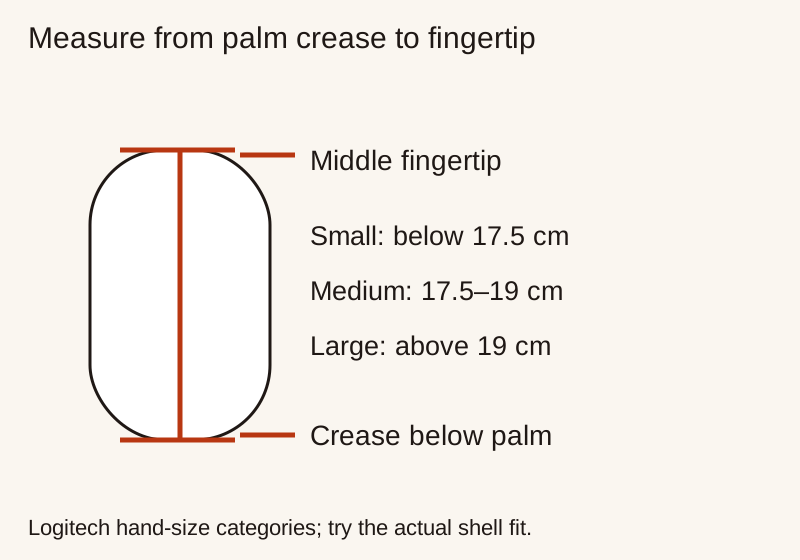
Logitech’s hand-size guide measures from the crease below the palm to the tip of the middle finger. Its categories are small below 17.5 cm, medium from 17.5 to 19 cm, and large above 19 cm. These are manufacturer sizing categories, not hard biological boundaries.
| Published feature | Logitech Lift | Logitech MX Vertical |
|---|---|---|
| Manufacturer’s shell angle | 57° | 57° |
| Intended hand sizes | Small to medium | Medium to large |
| Handedness choice | Right-handed and Lift Left | Check the right-handed shape against the intended user |
| Practical selection priority | Comfortable reach on a smaller shell | Palm support and reach on a larger shell |
Sources: Logitech Lift product page and MX Vertical product page.
Check reach while the hand rests naturally. The index finger should operate the main button without stretching; the middle finger should reach the wheel; the thumb should reach the intended side controls. A shape that requires squeezing to prevent slipping is worth reconsidering. Logitech also notes that the little finger may rest on the table, so that contact alone does not establish a bad fit.
Palm and fingertip users can prefer different shapes even with the same measured hand length. If the recipient already has a favorite mouse, compare its dimensions and grip with the proposed model. A surprise change from a light fingertip mouse to a large palm-support shell can be a bigger adjustment than the tilt angle suggests.
Plan a gradual first week
Make the first week a low-pressure trial rather than a deadline for adaptation. Begin with ordinary browsing, email and simple selection tasks. Keep the familiar mouse available for time-critical work, then extend use if the new grip remains comfortable.
Clarisse and colleagues’ familiarization study involved 18 women performing repeated pointing-clicking tasks. Performance reached a plateau after about 30 repetitions for both the slanted and vertical models. That task-based finding supports allowing practice; it does not establish a universal number of workdays for everyone.
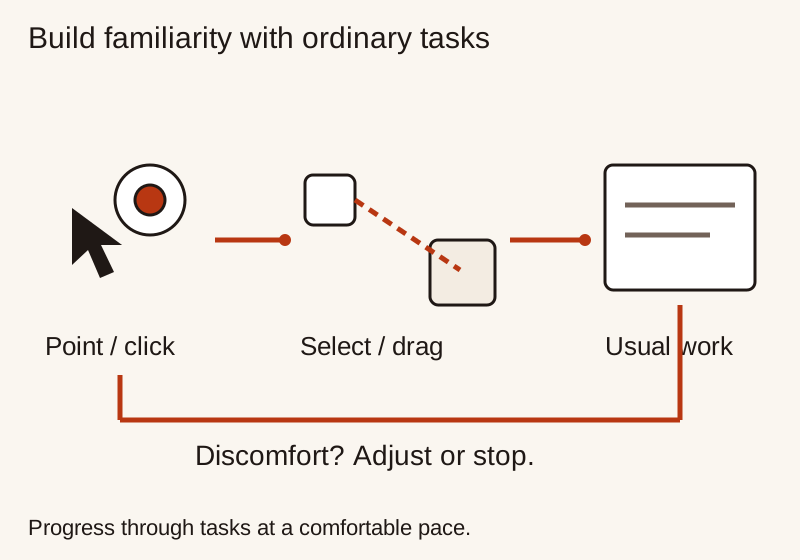
On the first session, check ordinary clicks and double-clicks. Next try selecting text and dragging a window. Finally try the applications that matter to the recipient, such as spreadsheets, illustration tools or timeline editing. A mouse can feel pleasant during browsing yet make a precision task harder. Let that actual workflow decide whether the change is useful.
Do not push through pain to complete an adaptation schedule. Return to a comfortable setup and seek appropriate advice for recurring symptoms. The return policy should cover the recipient’s trial period, including time after the gift is opened.
Adjust pointer speed by task
DPI describes sensor sensitivity, but pointer travel also depends on operating-system settings, display scaling and acceleration. Begin with a setting that allows accurate selection without repeated overshooting. Change one setting at a time, then repeat the same ordinary task to compare it.
Use the manufacturer’s software or documented controls to adjust sensitivity. Check whether software installation is allowed on a work computer before making customizable buttons a major reason to buy. An organization-managed laptop may limit configuration utilities even when basic mouse input works.
For multiple displays, test movement across the whole workspace and fine selection within a small menu. The useful compromise is enough travel without uncomfortable reaching, while keeping the pointer predictable. Save a simple profile and explain any extra buttons rather than configuring a complex set of shortcuts for someone else.
Check Bluetooth, receivers and device switching
List the computers or tablets the recipient actually switches between. Compare the exact product’s supported operating systems, Bluetooth requirements, receiver type and switching procedure. A USB-A receiver may need an adapter on a laptop with only USB-C ports; Bluetooth pairing may be restricted by workplace policy.
Device switching and moving files between computers are separate features. Confirm which actions work with hardware controls and which depend on installed software, permissions or network access. Check the location of the switching button: a control underneath the mouse is a different daily experience from one reachable while the hand remains on top.
Also decide whether replaceable batteries or recharging fit the recipient’s habits. Check the supplied receiver and cable list before purchase, preserve spare parts in the box, and use the manual for battery replacement or charging. Runtime claims should remain tied to the maker’s stated conditions.
Make room for the mouse and forearm
The Oregon OSHA workstation checklist treats input placement as part of the entire workstation. Keep the pointing device within easy reach, with relaxed shoulders and a comfortable wrist position. Moving clutter away may improve the trial more than changing several mouse settings.
Look for a desk edge that presses into the forearm, a keyboard that pushes the mouse too far sideways, or a tray that restricts movement. Check the actual mouse height against a pull-out tray before closing it. Use measured clearance rather than assuming every vertical shape will fit where a flat mouse did.
A laptop stand also changes the relationship between screen and hands. If the laptop is elevated, consider separate input devices and enough desk space for them. The desk setup gift guide explains how to plan that surface before buying accessories.
Questions before wrapping
Is 57° best for every hand? It is the shell angle specified for these Logitech models. Choose by actual comfort, reach and task performance. A slanted mouse or a different shape may suit another person better.
Should a trackball be on the shortlist? If the recipient wants to reduce how far the device moves across a small desk, compare a trackball’s thumb or finger operation too. Try the controls before committing; a different input motion changes the work rather than automatically making it easier.
What belongs in the gift? Include the correct handed model, required receiver or cable, instructions and a usable exchange receipt. Let the recipient choose the final button assignments and sensitivity.
Explore more smart home and desk gadgets or pair this purchase with the phone stand fit checklist.
Keep a short trial note
After each ordinary session, note whether the buttons were easy to reach, whether clicks moved the pointer unintentionally and whether the mouse stayed within comfortable reach. Record the task as well as the setting. This makes it easier to distinguish an unfamiliar motion from a shell that does not suit the hand. Change only one part of the setup before trying again, such as pointer speed or device position. Let the recipient decide whether the improvement is worth keeping; comfort and control are personal parts of the purchase.
Related Gift Buying Guides
Rechargeable Clip-On Book Light Guide: 1800K Amber Spectrum and PWM Flicker
Choose a rechargeable book light by page coverage, comfortable dimming, clamp fit and runtime. Understand amber colour temperature and the limits of camera flicker checks.
Read buying guide
How to Choose a Phone Stand as a Useful Gift
Choose a desk phone stand by phone and case fit, viewing position, stability, cable access and storage space.
Read buying guideBuild a Desk Setup Gift That Helps Every Day
Choose useful desk gifts by available work space, comfortable device access, cable routes, clamp fit and daily storage needs.
Read buying guide